Contents
Installing VS Code
Download and install VS Code from
- VS CODE from this link
VS Code Basics
Adding Extensions
To add an extension:
- Open VS Code:
You will see this screen:
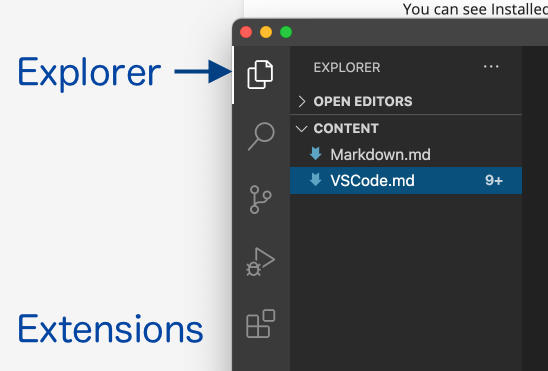
- To add extensions we will:
-
- Open Extensions in Activity bar
-
- Search for extensions
-
- Install relevant Extensions
-
- Set any Preferences (Settings) for an extension
-
- Click on Extensions in the left hand menu. It is the 3 box’s, with a 4th one flying off the top right corner
Search for markdown:
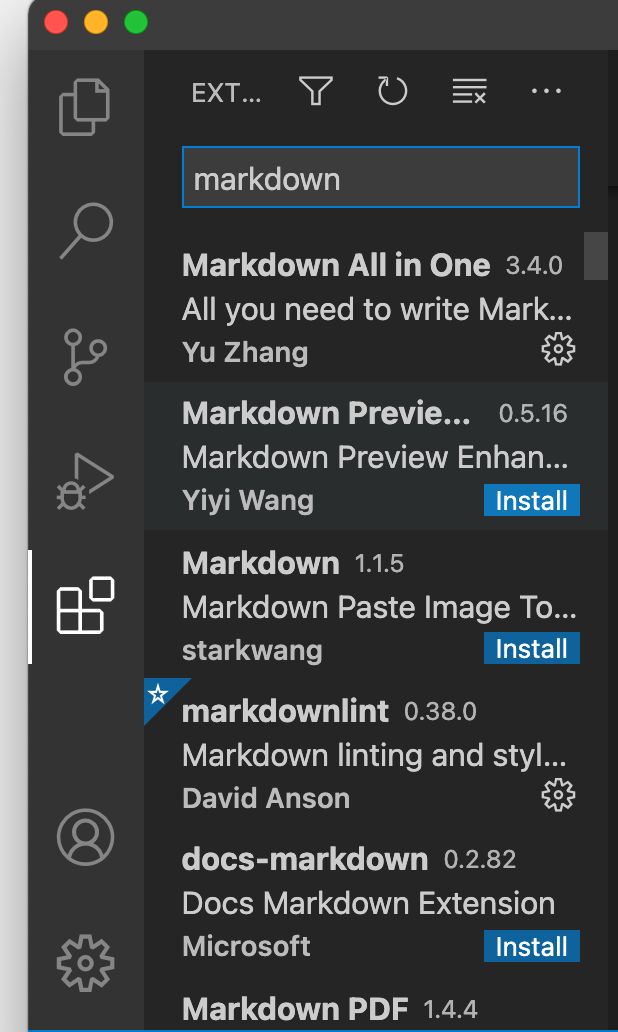
Install these Extensions:
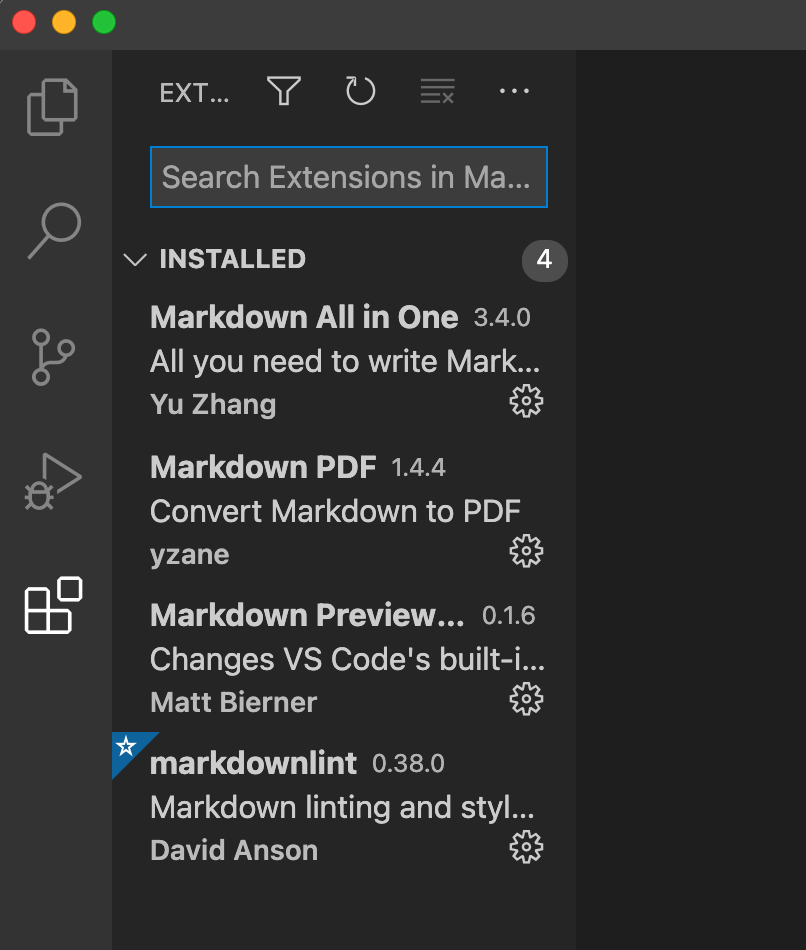
Extension Settings
- Click on the Gear symbol next to an extension to open the settings
Select Extention Settings:
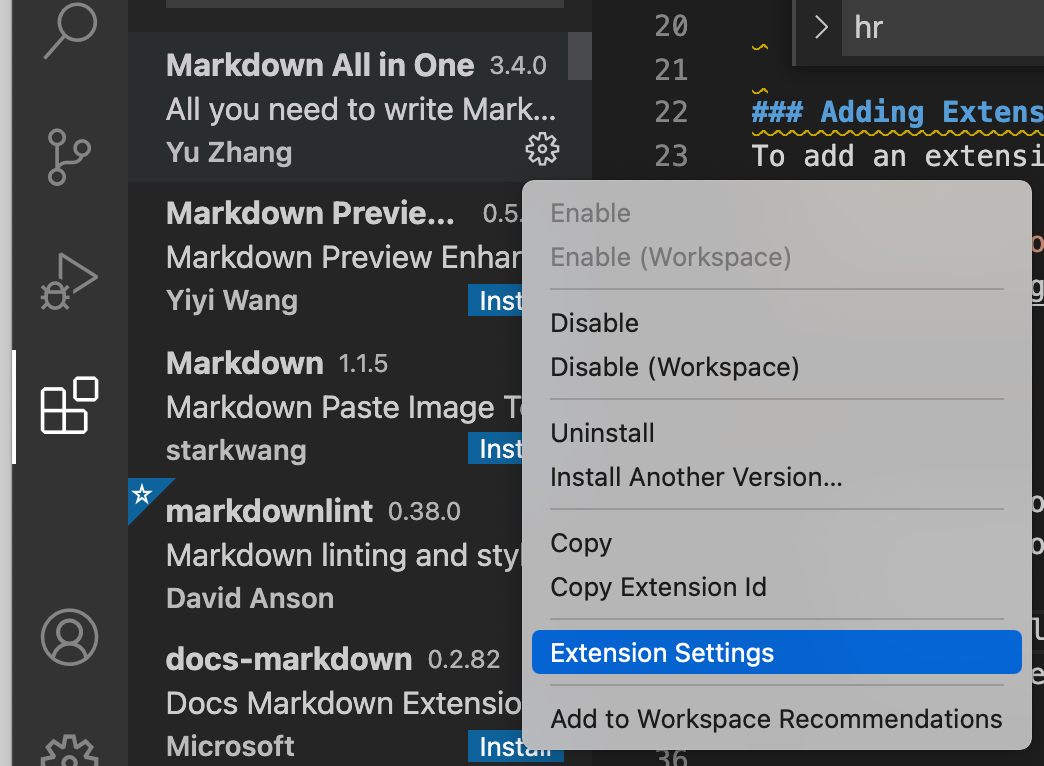
Running extensions
Most extensions just run in the background. They extend the base functionality of VS Code
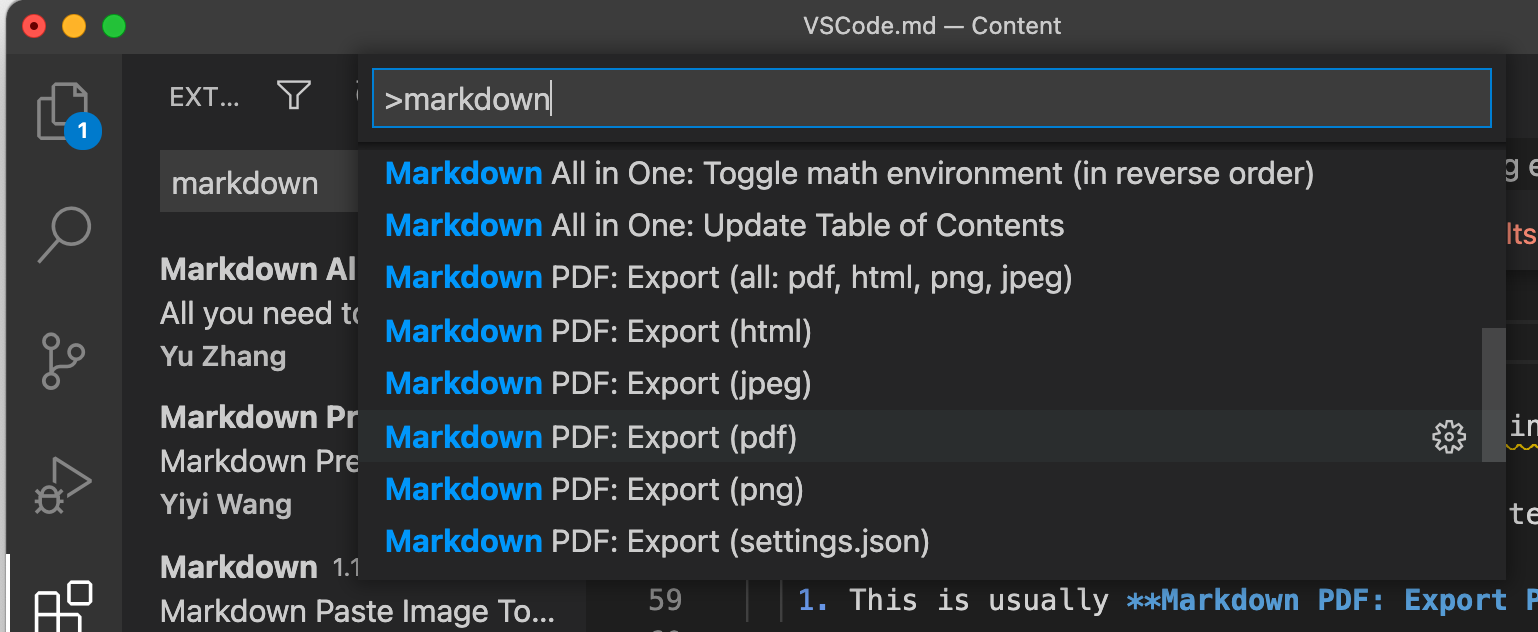
Some extensions add features that can be run using the command palette
This can be opened by:
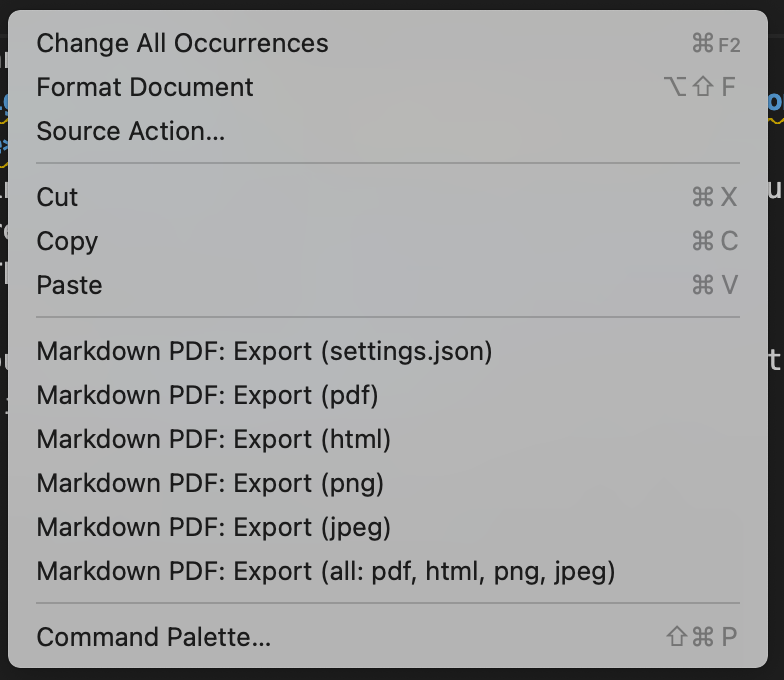
- Right Clicking on the page and selecting command palette
- Typing Markdown and then clicking on the required featuire.
- This is usually Markdown PDF: Export PDF
Command Palette bar:
Once you have used a feature several times, it starts to appear in the Right Click menu.
Right Click menu:
First Markdown Page
Read about creating your first markdown page